
Week 7 – Indesign
This week, I learnt about the Indesign Adobe to create a magazine. Then I designed the cover and the page of my landscape architecture magazine in Photoshop, and put it into Indesign.
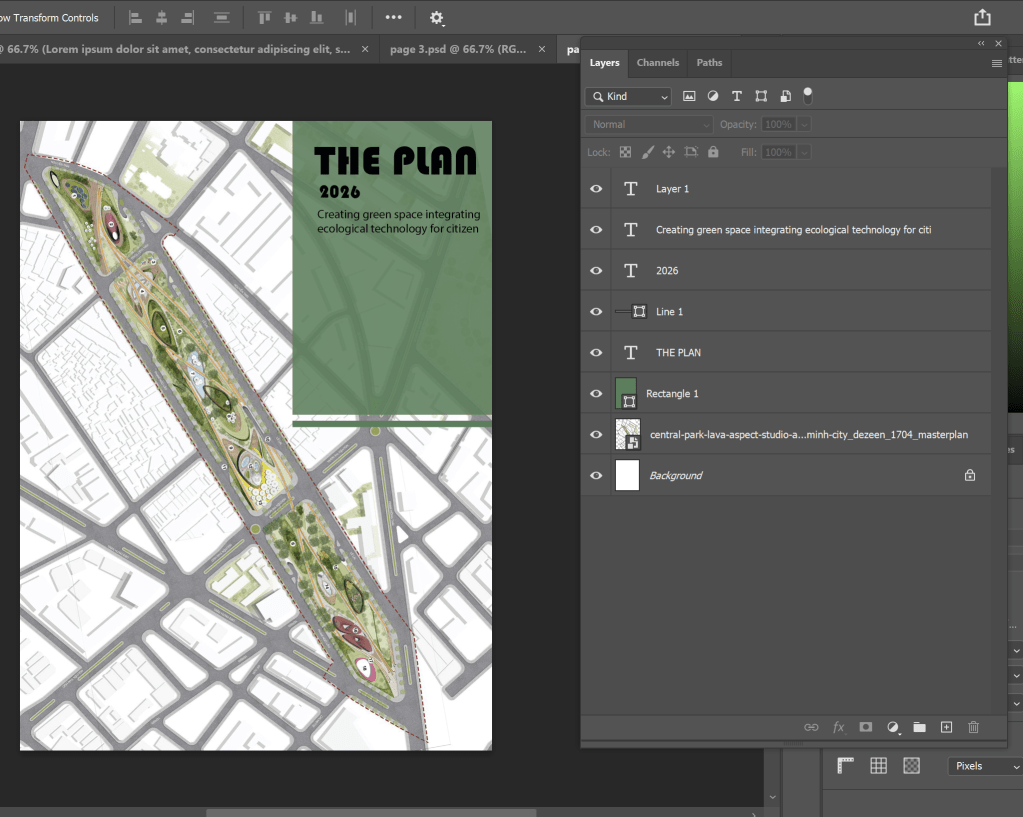
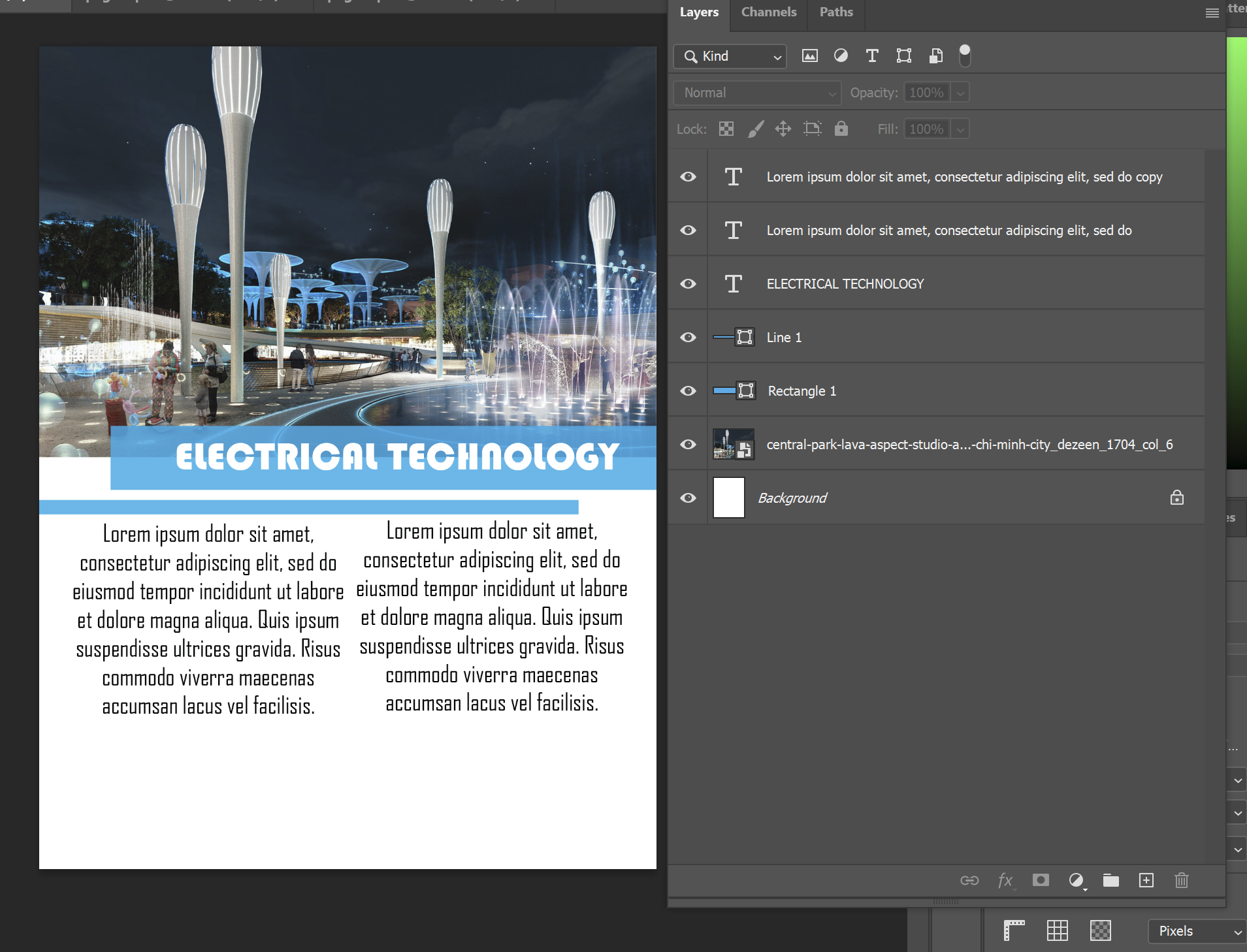
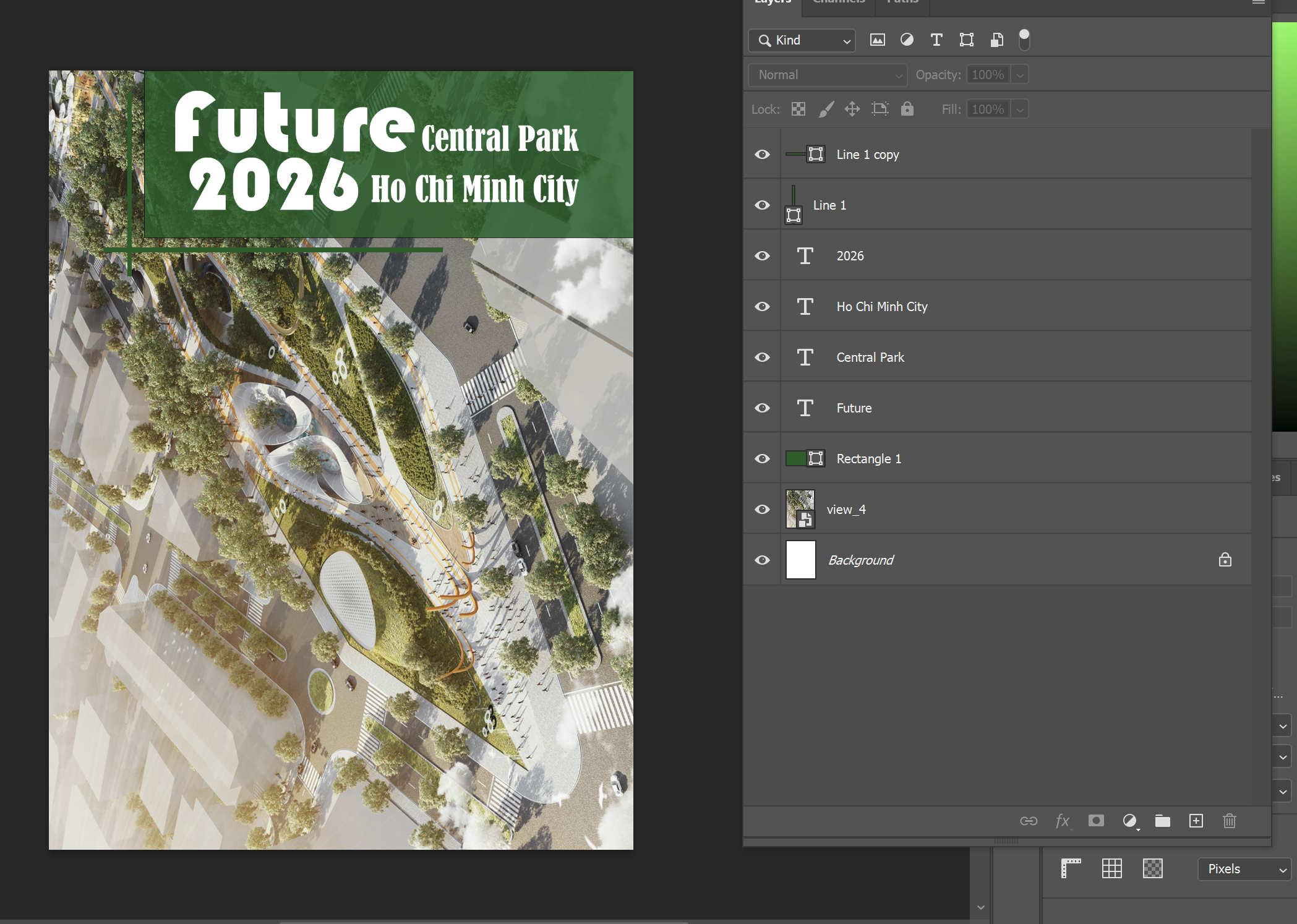
I chose images from an actual project planned for central park in HCM city, but it was delayed and cancelled for some reasons.
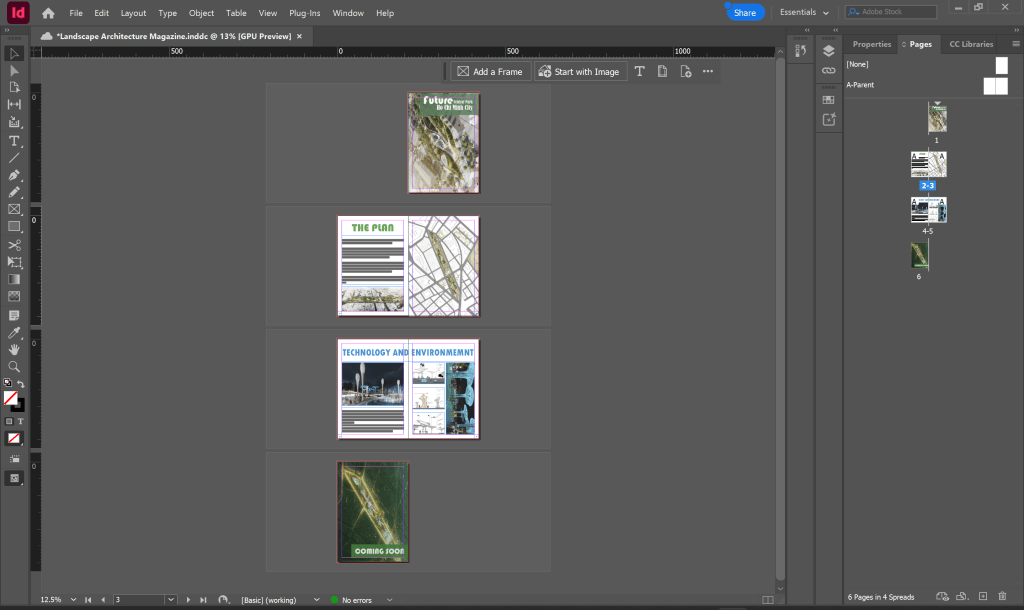
This is Indesign, the front cover and back cover which I design in Photoshop and put it into Indesign. To put images in Indesign, I created a frame by using Retangle Frame Tool or click “F”, then I drag an image into the frame.
To create page number, I choose A-parent pages then create a text box ( use A and B to be wildcard characters) inside. Next, I go to menu Type -> Insert Special Character -> Markers -> Current Page Number. After that I go back to normal pages end can see page number for each page. To delete page number, I drag the page which I want its page number to be deleted to [None](symbol above A-parent).
 Phuong Vi Nguyen